Integrate with OpenID Connect (OIDC) and Azure AD
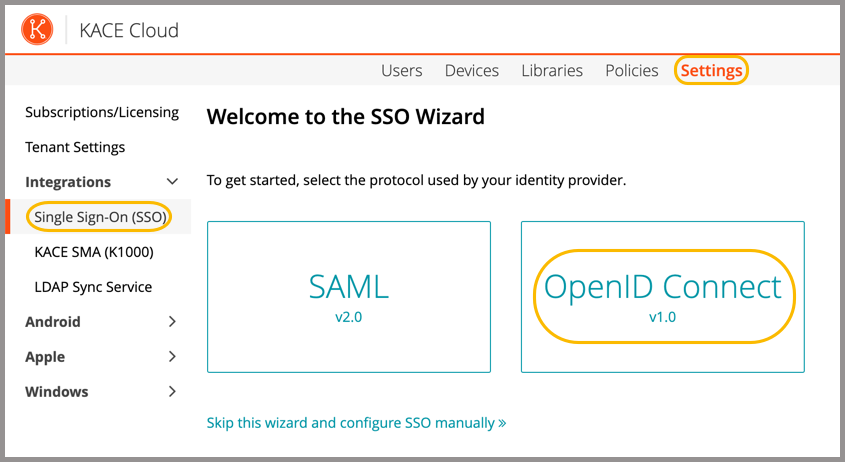
KACE Cloud subscribers can use an identity provider protocol using OpenID Connect (OIDC) and Azure AD.
- Open both KACE Cloud and your Azure AD Server.
- In KACE Cloud, complete the following steps:
- In Azure AD, register the new KACE Cloud app.
- In Azure AD, in the left panel of the main directory, select App registrations.
- Click New registration to register the new KACE Cloud app.
- Specify the following settings:
- Name:For example, type KACE Cloud.
- Support account types: Select the default Accounts in this organizational directory only which corresponds to Single tenant for most scenarios.
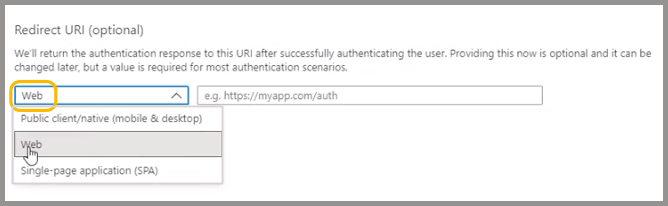
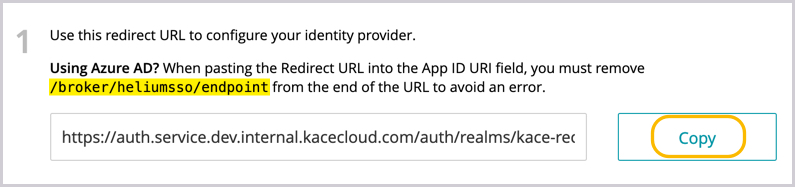
- Redirect URI: Paste the redirect URI value copied from KACE Cloud in step 2d.
When configuring this value, you must be sure Web is selected to ensure the correct value. If you are unable to determine where the redirect URL field is located within your identity provider’s portal, please reference their documentation.
- Click Register.
- Modify the API permissions.
API permissions give KACE Cloud the ability to modify some of the properties inside of Azure AD, such as device status.
- Click Add Permission.
- Choose Microsoft Graph.
- Click Delegated Permission.
This ensures that the API behaves as the signed in user.
- Under Permission, select email, openid, and profile.
- Click Add Permission.
- Review and grant all permissions.
- Review each status for the green Granted for [tenant] icon.
- Locate the missing status for the api/permission name.
- Click Grant admin consent for [tenant].
- Click Yes to approve.
This action grants all permissions for the app.
- In Azure AD, obtain the configuration URL for KACE Cloud.
- In KACE Cloud, import the OpenID Connect metadata document URL.
- In the KACE Cloud SSO Wizard, paste the OpenID Connect metadata document URL obtained in step 4c into the Import from URL field.
- Click Import.
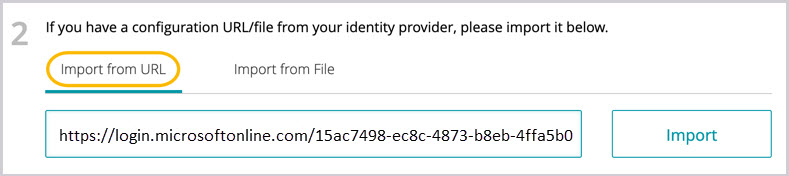
The location of the file/URL varies based on identity provider. If you are unable to determine where the settings are located within in your identity provider’s UI, please reference their documentation.
Once imported, the majority of information will be populated in the main SSO configuration screen of KACE Cloud. When using OIDC, there are two additional fields that are required: Client ID and Client Secret.
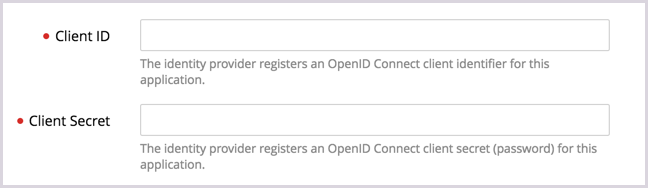
- Obtain the Client ID from Azure AD.
- In Azure AD, select App registrations in the left panel of the main directory.
- Select App registrations in the left panel of the main directory.
- In the new Application Registration detail pages, select Overview in the left panel.
- Copy the value in the Application ID field.
This is the Client ID.
- In KACE Cloud, in the SSO Wizard, paste the newly copied value into the Client ID field.
- Generate the Client Secret in Azure AD.
- In the new Application Registration detail pages, select Certificates & Secrets in the left panel.
- Under Client secrets, click + New client secret.
- Specify the following settings:
- Description: For example, you can type KACE Cloud Key.
- Expires: Set this value to In 2 years
- Click Save.
- Copy the contents of the Value field (newly populated).
This is the Client Secret.
- In KACE Cloud, in the SSO Wizard, paste the newly copied value into the Client Secret field. Then, click Save Settings at the bottom of the page.
- Configure Azure AD to send group information.
The identity provider can be configured to send information for values such as security group and distribution list membership.
- In Azure AD, locate and open the KACE Cloud App registration to display details and settings.
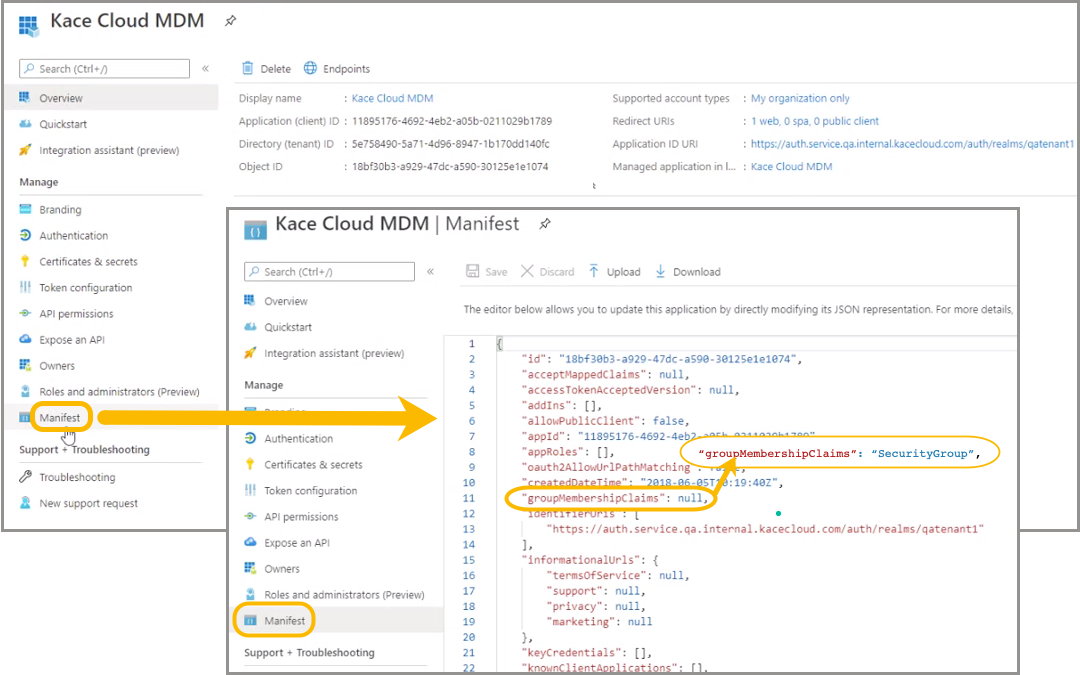
- In the left pane, click Manifest.
- Update the manifest to include group membership claims by changing the value of "groupMembershipClaims" from null to "SecurityGroup". The value can also be changed to "All". This will send security group and distribution list membership information.
- Click Save.
- In KACE Cloud, review and confirm the user attribute mappings, as needed.
At this point, user attribute mappings are pre-populated in KACE Cloud. The mappings pre-populate consistently for Azure AD, Okta, and AuthO. Some providers may use different names for common attributes. When using a different identity provider, you must confirm the naming conventions for common attributes and add them manually.
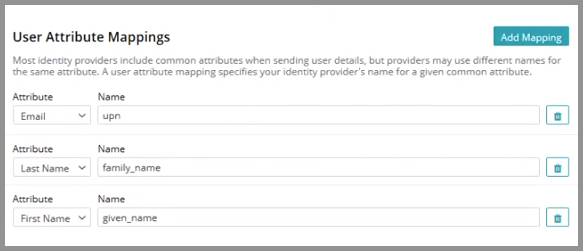
- In KACE Cloud, assign user roles.
- In the Assign User Roles area, under Device User Role, select the applicable option.
The default setting is Automatic: Assign all SSO users the Device User role.
The setting can also be changed to either Automatic: Define certain attributes to assign SSO users the Device User role or Manual: Assign individual SSO users the Device User role.
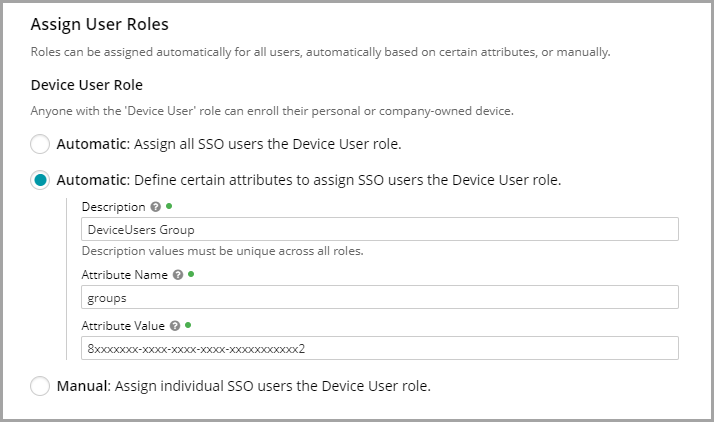
- If you select Automatic: Define certain attributes to assign SSO users the Device User role, add the following values to the corresponding fields:
- Description: A unique description for this group mapping.
- Attribute Name: Set this field to groups.
- Attribute Value: The value of the Object ID of the group from Azure AD.
- Assign the device admin role.
The Default setting is Manual: Assign individual SSO users the Device Admin role. If the setting is changed to Automatic: Define certain attributes to assign SSO users the Device Admin role, add the following values to the corresponding fields:
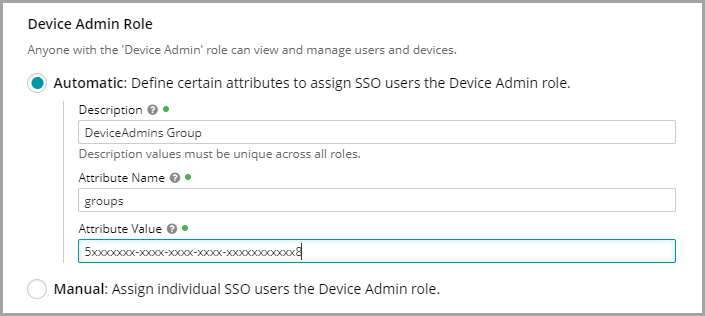
- In the Assign User Roles area, under Device User Role, select the applicable option.
- Obtain some additional details from Azure AD, then add them to KACE Cloud.
- In Azure AD, locate the Description value:
- Select Users and groups in the left panel of the main directory.
- Select All groups.
- Locate your group, then open to see details.
- Copy the Display name of the group.
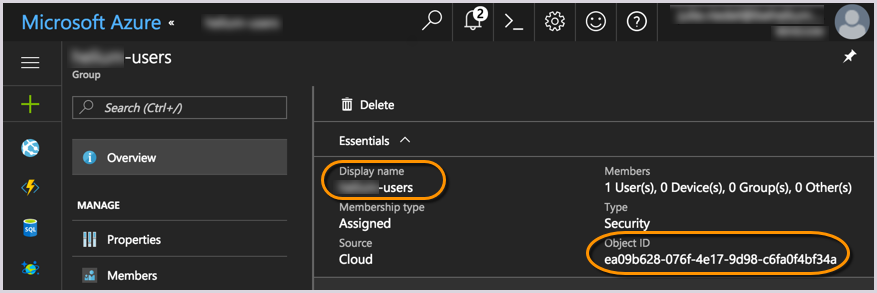
- In KACE Cloud, in the SSO Wizard, in the Description field, paste the newly copied group Display name from Azure AD.
- In KACE Cloud, in the SSO Wizard, in the Attribute Name field, type groups.
The Attribute Name is always groups for an OIDC-based SSO with Azure AD.
- In Azure AD, locate the Attribute Value value.
- Follow the same instructions used to locate the Description.
- Copy the Object ID of the group (see the above image).
- In KACE Cloud, in the SSO Wizard, in the Attribute Value field, paste the newly copied Object ID from Azure AD.
- In KACE Cloud, click Save Settings.
The locations and definitions for these values vary based on identity provider.
- In Azure AD, locate the Description value:
- In KACE Cloud, enable and test single sign-on.
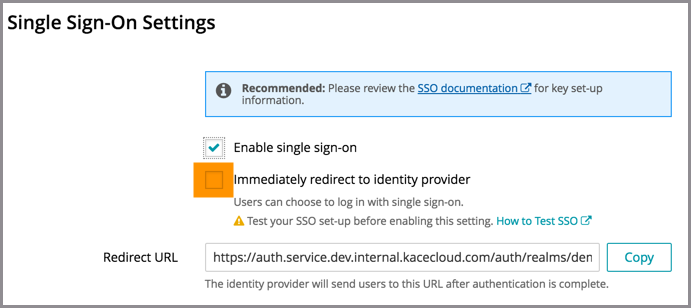
- On the Single Sign-On Settings page, at the very top, select the Enable single sign-on (SSO) check box.
- Before selecting the Immediately redirect to identity provider check box, test the success of the single sign-on setup.
- Open a new incognito window or private browser to ensure login data is clear.
- Go to the KACE Cloud portal, but do not log in.
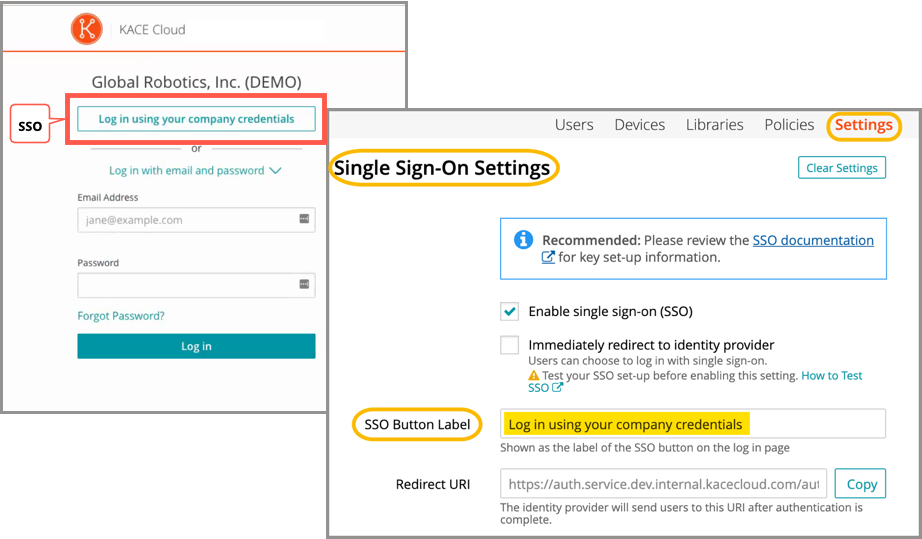
- Follow the Single Sign-On workflow using the customizable button.
In the example below, the Log in using your company credential button leads to the SSO workflow. The label on this button can be customized using the SSO Button Label field at the top of the SSO Wizard.
- On the KACE Cloud Microsoft login page that appears, log in using your identity provider credentials.
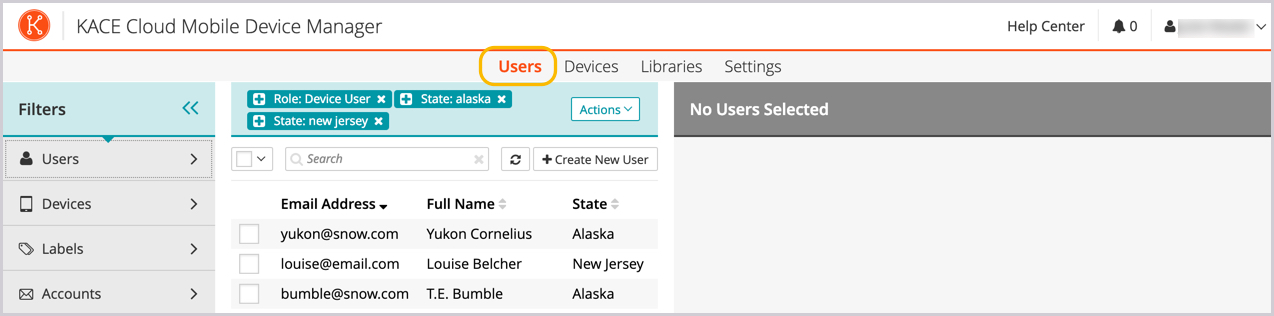
Single sign-on is successfully set up if the Users landing page appears in KACE Cloud:
When the setup of single sign-on is successfully tested, users can be redirected to the identity provider's login screen.
Troubleshooting
| Problem | Solution |
|---|---|
| Single Sign-On button not visible on KACE Cloud portal. | Confirm that Enable single sign-on is checked on the SSO Settings page. |
| Error message on Microsoft login page: "AADSTS70001: Application with identifier ### was not found in the directory ###" | Azure AD App ID URI does not match KACE Cloud identifier. Revisit Step 1 and confirm that the App ID URI is copied correctly, and ensure that the end of the URL has been removed: /broker/heliumsso/endpoint. |
| Update password request on Microsoft login page. | If you have created a brand new Azure AD account, Azure will prompt you to reset your password the first time it is used. |
| Error message on Microsoft login page: "AADSTS50011: The reply address ### does not match the reply addresses configured for the application: ###" | Update the Azure AD app registration Reply URLs to include the reply address indicated in the error message. This property can be found in Azure AD under App registrations > KACE Cloud > Settings > Reply URLs. |
| Error message on KACE Cloud portal. |
Azure AD successfully validated the username and password, but KACE Cloud did not accept the user. This may be because the user is not in the Azure AD group being assigned a device admin role. To troubleshoot:
|
| Single Sign-On misconfiguration or identity provider error |
As part of SSO, most companies will redirect their users to their identity provider's sign-in page. In the case of a misconfiguration or identity provider error, a device admin can bypass SSO by adding ?nosso=1 to the end of their product portal URL to turn off redirection and go directly to the KACE Cloud login screen. Example: https://yourcompany.kacecloud.com?nosso=1 |